
OpenVidsFree
Direct AI edits in an open-source desktop timeline you can take over.
OpenScreen: Free Screen Recorder for Clear Product Demos
Record, caption, and polish desktop demos with local tools and optional AI editing.
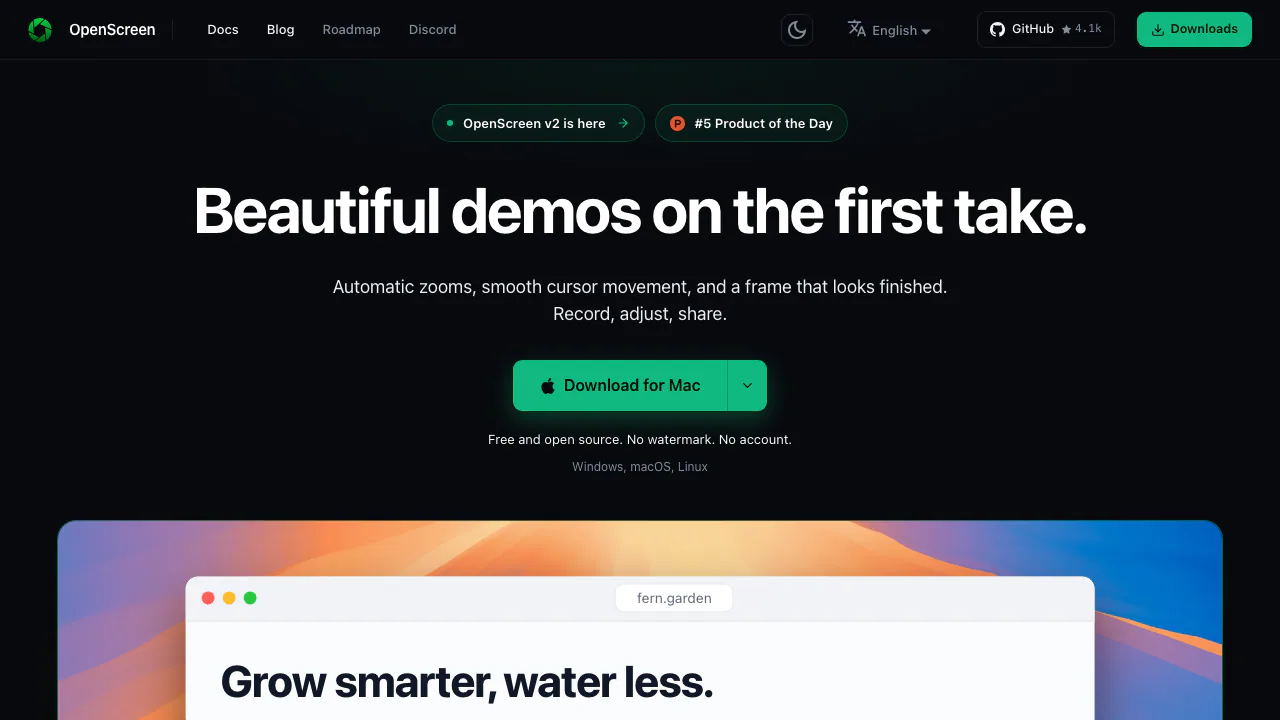
OpenScreen is a free screen recorder and desktop video editor for turning software walkthroughs into understandable demonstrations. Record a window or display, explain your actions, then refine the result with editable zooms, captions, and timeline cuts. It suits product teams, developers, and educators who want a finished file they control.
What is OpenScreen used for?
Think of it as a recorder with a small production studio attached. Instead of handing someone a long, unedited capture, you can draw attention to a button, remove a false start, show your webcam beside the application, and deliver a shorter explanation.
The community-maintained project at getopenscreen.com provides applications for Windows, macOS, and Linux. It is particularly useful for onboarding, feature announcements, training, and reproducing a software workflow. It does not provide livestreaming, mobile recording, or a hosted workspace for sharing videos.
Record a walkthrough with useful audio
Prepare the application you want to demonstrate and make a short test before recording a longer explanation. In the recorder's control bar, choose a display or window, check the microphone meter, and enable system audio or the webcam if needed. Linux asks you to select the source through the system sharing dialog for each take.
Start recording, follow the countdown, demonstrate the task, and select Stop. Open Studio to review the result. For a manual cut, press T to create a trim region and adjust its edges; check the transition in playback. The quick-start guide shows the complete first-recording path.
Check platform conditions before relying on the audio:
- Windows packages are x64. The documented minimum is Windows 10 version 1903, while native capture needs build 19041, corresponding to version 2004, or later. The project recommends the signed Microsoft Store distribution.
- macOS 13 or later supports recording on Apple Silicon and Intel; microphone capture requires macOS 15 or later.
- Linux x64 needs PipeWire and xdg-desktop-portal. System audio also depends on the PipeWire sound server.
The installation instructions cover permissions and dependencies. OpenScreen captures a full display or window; to show a smaller area, crop the clip afterwards.
Make clicks and small interface details easier to follow
Editable cursor mode stores pointer movement separately, allowing changes to its size, smoothing, and click effects. On macOS it needs Accessibility permission; Linux click capture needs appropriate mouse permissions. System cursor mode instead keeps the original pointer in the video.
Automatic zooms use recorded clicks and fixed rules. They do not call an AI provider or understand the meaning of your interface. Review the generated zoom regions and adjust their focus or depth so the important action remains visible.
Use arrows or text for explanation, and rectangular or oval blur masks for details that should not appear in the finished video. Backgrounds, padding, shadows, and webcam layouts help frame a demo. Set the composition to 16:9, 9:16, or 1:1 according to where you will use it.
Turn narration into captions and text-based edits
OpenScreen transcribes speech locally with whisper.cpp. The first use downloads a model of about 264 MB; subsequent transcription can run offline. Use Transcribe now, or regenerate a clip's transcript from Media, with automatic language detection or an explicit language.
Read the transcript while previewing the recording. Select an unwanted word or passage and press Delete or Backspace to exclude that time span. Silence spans can also be removed, and skipped passages can be restored: these are editable cuts, not permanent destruction of the source recording.
Style the captions' font, color, background, and position, then check that they do not cover the controls you are explaining. Captions are burned into the exported picture. Viewers cannot switch them off, and there is no separate SRT or VTT export. See the caption and transcript instructions before choosing this workflow for an accessibility deliverable.
Use the AI editor only when you need it
Ordinary recording, editing, local captions, and export do not need an API key. To use the optional agent, open the chat panel in Edit mode, enter AI settings, choose a supported provider, and supply your own key. The agent can read the timeline and transcript and propose or apply edits; Project edits controls whether it may modify the project, and Ctrl/Cmd+Z can undo changes.
Smart cuts uses this agent. Automatic zooms does not. Caption translation also uses the connected language-model provider. Provider usage may be billed separately.
Recordings stay on disk, but optional AI sends messages and the project information it reads to your chosen provider; caption translation sends caption text. The application also makes network requests for such purposes as fonts, model downloads, and update checks. Treat “local recording” as a specific data-processing boundary, not a promise of zero network activity. The AI editing guide explains the connection and controls.
Export the right deliverable
Save an editable .openscreen project before creating the final file. MP4 uses H.264, with 720p, 1080p, or Source resolution and 24, 30, or 60 fps. Animated GIF offers its own frame-rate, size, and looping settings.
Choose the aspect ratio in Composition; changing the export format does not change it. Source resolution accounts for the smallest clip after cropping, while a fixed resolution can enlarge a small clip without creating new detail. Encoding speed depends on hardware, and Linux may use software encoding.
After export, use Show in folder and play the actual file to inspect audio, captions, and cuts. Upload or distribute it through your own destination: OpenScreen does not generate a hosted sharing link. The export guide explains these choices.
Questions before you download
Is OpenScreen free, and does it add a watermark?
As checked on October 13, 2026, the software is free for personal and commercial use under MIT, with no paid tier, watermark, or required account. This applies to the application in the US as elsewhere; optional external AI usage follows your provider's pricing. The license does not grant rights to third-party material you record.
Can I use OpenScreen on Windows, Mac, or Linux?
Yes, subject to the requirements above. Pay particular attention to Windows capture builds, macOS 15 for microphone recording, and Linux's PipeWire dependencies. There is no iOS or Android recording app.
Can I record the computer's sound and my microphone?
Both are supported as optional sources, subject to platform prerequisites and permissions. Check the input meter and listen to a test take before recording a tutorial; on macOS, microphone support specifically requires version 15 or later.
Official guides and community
- OpenScreen's official FAQ: pricing, data handling, and product limitations.
- Source code and issue tracking on GitHub: releases, implementation, and reproducible bug reports.
- Official Discord community: discussion and help from the project community.
Related tools
AI Video Editing & Workflow Tools →
LaunchReelPaid
Edit recordings and build product launch videos with Claude Code.
SocialGPTPaid
Direct your video edit in chat, then refine the timeline yourself.
SupacutPaid
Find interview soundbites and build an editable first assembly
FramefieldsFree
Create, inspect and render video compositions with TypeScript and a coding agent.
LookoutFree
Watch selected Slack channels and turn matching messages into useful actions.