
Kente LabsFreemium
AI tools for family memories, voice journals and jewellery ideas.
Parrot: AI meeting notes and a live assistant for Mac
Record, transcribe and review meetings on your Mac, with live help from your own documents.
What does Parrot do, in plain English?
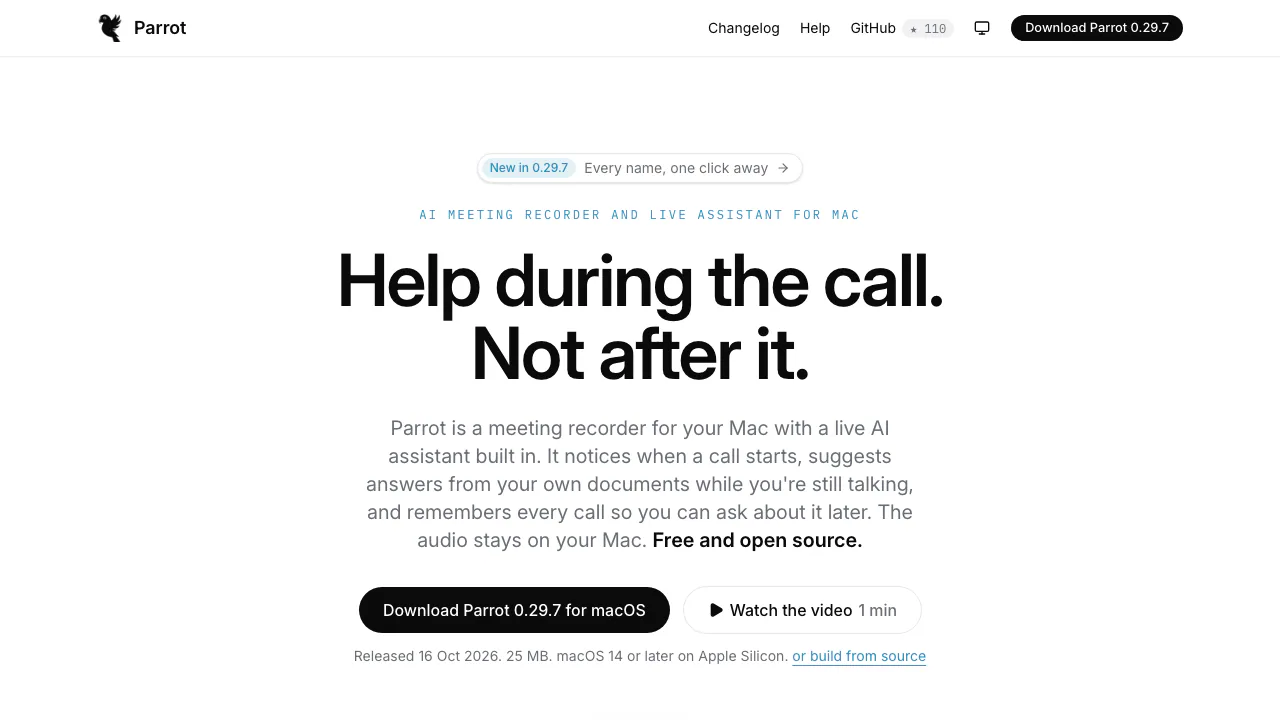
Parrot, available at OpenParrot.app, turns conversations on your Mac into searchable transcripts and AI meeting notes. It records your microphone and the sound playing on the computer, offers assistance while a call is happening, and helps you review decisions afterward. The website provides the download and documentation; the recording takes place in a desktop app.
It suits people handling client calls, interviews and recurring team conversations who want to check what was actually said. The download requires an Apple Silicon Mac, M1 or newer, running macOS 14 or later. There is no Windows or Linux version.
Record your first meeting and check both sides
- Download the official DMG, open it and drag Parrot into Applications.
- Allow microphone and system audio access. On macOS 14, system audio uses the Screen Recording permission and requires restarting Parrot; the app captures sound, not screen content.
- Choose a processing setup. Private uses local models; Balanced keeps transcription local while Claude processes text; Cloud can use Deepgram for transcription. Wait for the speech model download to finish.
- Choose a call profile, add a short brief if useful, then start recording or accept the prompt when a call begins.
- Check that both sides appear in the transcript. After stopping, review speaker names, the report and its linked evidence before sharing.
The installation guide explains permissions and model choices. One important control: muting Zoom does not mute Parrot's separate microphone capture. Use Parrot's Mute me control when your side should not be recorded.
Bring useful answers into a live call
Add pricing sheets, FAQs or playbooks as PDF, text or Markdown in Settings → Knowledge. Parrot indexes them on the Mac and retrieves relevant passages for the Assistant. Answer cards identify the document used; you can control whether general knowledge is allowed when your documents do not cover a question.
Profiles adapt the assistance to the task. A sales conversation can track objections and next steps, while an interview uses different prompts and report criteria. Custom profiles let you choose instructions and relevant documents. Local indexing does not mean cloud answers are entirely private: matching passages can be sent to the selected AI provider.
Turn the transcript into a report you can verify
Reports organize the conversation into key points, next steps and profile-specific coaching. Click a timestamp to inspect the supporting transcript line and play that moment. Unsupported commitments are marked unverified; review names, amounts and responsibilities before treating them as settled facts.
Speaker detection runs locally. Listen to a sample, name a voice and correct a misplaced line when needed. Existing audio recordings can also be imported for transcription and analysis.
Choose an export for its audience: PDF shares the report without the full transcript, personal notes or AI cost; TXT contains the fuller meeting material; SRT supplies timestamped subtitles. Optional Markdown, Obsidian and Reminders workflows help move reviewed material into follow-up work.
Decide what stays local and what goes to a provider
Whisper plus Ollama can handle transcription, assistance and reports offline after the models are downloaded. Recordings, transcripts and the document index stay on the Mac; API keys use macOS Keychain.
Cloud transcription sends audio to Groq or Deepgram. A cloud Assistant or report model receives transcript text and relevant document excerpts. The on-device-only setting excludes a meeting from cloud processing, webhooks and connected AI apps. The privacy policy explains these separate data paths and deletion controls.
Free software and optional AI spending
Checked on 19 October 2026: Parrot is free, requires no account and has no paid app plan. Its source is GPL-3.0 licensed. Local inference does not incur a provider usage charge, but requires compatible hardware and model downloads.
If you choose cloud AI, you pay that provider under your own account. Cost depends on its model and usage; a sample hourly cost is not a guaranteed tariff. A consumer AI subscription and an API key are different forms of access.
Search old calls or connect your AI app
Ask Parrot opens with Command-K and links answers back to meeting moments. It is beta; its documented query languages are English and Turkish. Small local models can confuse details across several calls, so check the cited passage.
The optional AI app connection lets local Claude, Codex, Cursor and compatible MCP apps read permitted meeting material. The app may send that text to its own provider. Audio, keys and on-device-only meetings are excluded. Profile suggestions wait for your review; cloud-only agents cannot reach this local connection.
Frequently asked questions
Is Parrot free?
Yes. The application has no subscription. Optional cloud transcription or AI processing can generate charges from the provider you select; using local models avoids those API charges.
Does it work with Teams and Zoom?
Yes, and Google Meet. It captures the Mac's audio rather than joining as a meeting participant. Check microphone and system audio permissions before relying on the recording.
Can I keep meetings offline?
Yes, after downloading the required models. Use local transcription and Ollama, and select on-device-only when the meeting must also be excluded from later cloud or AI app access.
Official resources
- Parrot help — setup, models and troubleshooting.
- Source code and license — inspect or contribute to the app.
- Bug reports — report reproducible problems.
Related tools
AI Meeting Assistants →
EarnoteFreemium
Turn recordings into structured notes, tasks, flashcards and PDF study sheets on Apple devices.
OpenScreenFree
Record, caption, and polish desktop demos with local tools and optional AI editing.
Speak an idea, keep the recording and find the thought again.

AfterpartyFreemium
Turn meeting commitments into drafts you review and approve.
HeyPiFreemium
An AI meeting workspace for turning live discussion into work.