

LisenFreemium
Listen to articles in Chrome with your own Cartesia voices.
Notify Sound: Editable AI Sound Effects and Alerts
Make short notification sounds by editing synth layers or asking a connected AI assistant to design them.
What is Notify Sound used for?
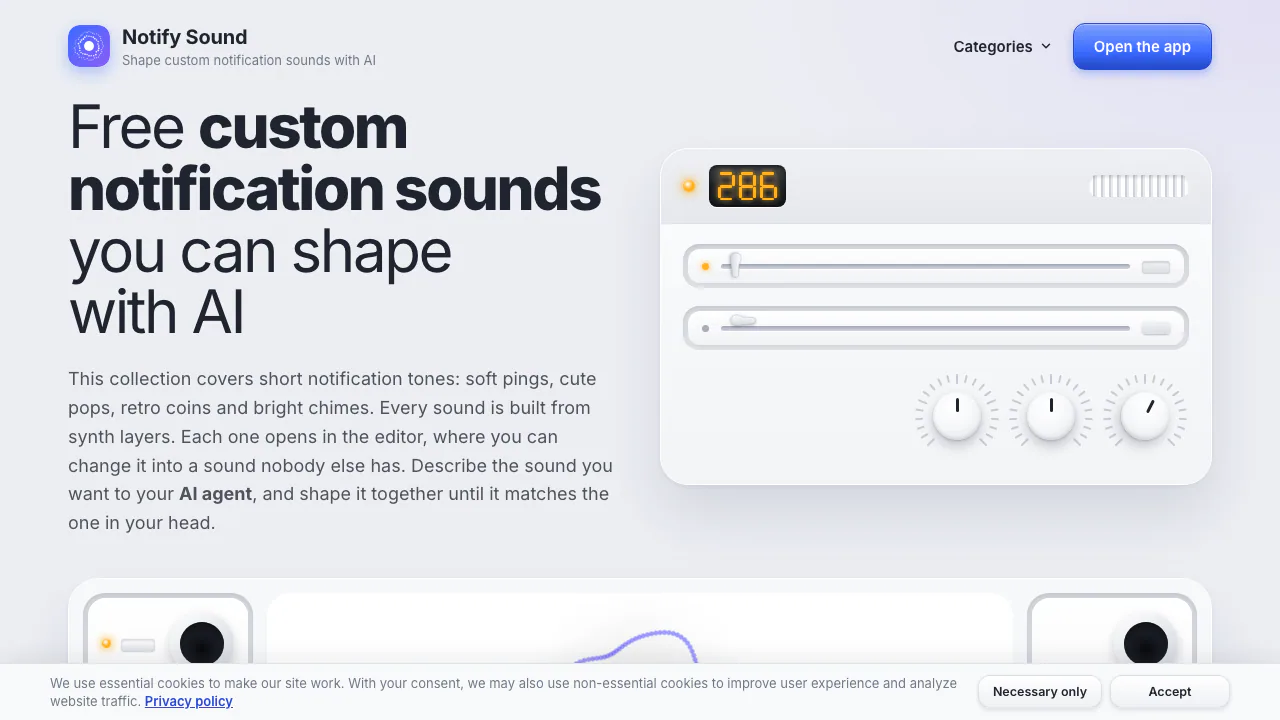
Notify Sound is a browser-based sound effect maker for short alerts, notification tones, UI clicks and game feedback. In plain terms, it lets you design the small sound an app makes when a message arrives or a task finishes. You can start with a ready-made tone, change how it sounds and download the result. Its AI workflow connects an external assistant to the editor through MCP.
The sound engine builds audio from oscillators and noise, rather than recordings or samples. Presets such as Soft Ping, Coin and Whoosh therefore open with editable settings. This is useful for developers and creators who need a family of related effects, or anyone who wants a personal notification tone. Its documented focus is short sound design; it should not be treated as a complete songwriting or voice-cloning service.
Build a notification sound you can adjust
Each layer contributes a note or a burst of noise. A main tone can provide the body, a higher layer can add brightness, and noise can supply the initial click. To complete a first sound:
- Choose a preset on the site and press Edit to open it in the editor.
- Enable Loop to hear changes repeatedly. Scopes displays each layer’s waveform.
- Adjust Pitch, the wave shape and the envelope controls. Attack changes the fade-in; Ring out changes the tail. Start after delays a layer, which helps build a sequence.
- Try a global effect such as Reverb, Echo or Crunch and adjust its Amount. Recheck whether the result suits its intended notification or transition.
- Use Save for the browser library, Share for an editable link, or Download for an MP3 file.
There is an important distinction between design and monitoring: Bass, Treble and Volume change what you hear in the editor, but do not change the shared sound or downloaded file. Use the actual layer controls when you want an exported change.
Design sounds with an AI assistant
The official MCP endpoint is https://notifysound.com/mcp. The site lists connections for Claude, Claude Code, ChatGPT, Codex, Cursor and VS Code. Follow the instructions for your client, connect Notify Sound, then describe the desired effect. For example: “Make a warm two-note message chime, under one second, with a short tail.” This is an illustrative request, not a guaranteed output specification.
The assistant designs the synthesis layers and returns an editor link. Open it, listen and refine the layers before downloading. Access to the assistant and its own charges or data rules are separate from the website.
Keep your sounds and use them responsibly
Saved sounds stay in the browser’s local storage. Clearing site data or changing browsers can lose that library, so download important work. A Share link carries sound parameters after #; anyone receiving it can open the design. The privacy policy says sound creation and export happen on the device, while website visits still involve hosting logs, Google Fonts and analytics-related data.
The sound license and terms allow commercial use under CC BY 4.0. Credit Notify Sound, link to the website and license, and say whether you changed the sound. Free audio does not remove those attribution duties.
Frequently asked questions
Is Notify Sound free, and do I need an account?
As checked on 5 October 2026, the public terms describe the browser editor as free without an account. They also mention possible extra terms for features marked Pro, but no specific public Pro price was found. Do not assume an external AI assistant is included for free.
What can I download?
Download produces MP3. You can take that file into a suitable app, game or video workflow. Setting a phone’s notification sound is a separate device or app step; the website does not perform that setting for you.
Do I have to use AI to make a sound?
No. You can edit presets and synthesis layers manually. MCP is the optional route for asking a compatible assistant to design the layers before you refine them.
Official resources
- Editor control guide — explains layers, effects, saving and export.
- Open the sound editor — start editing a sound.
- Product support email — the contact listed on the official site.
Related tools
AI Audio & Voice Generators →
DialFreemium
A phone identity and communication API for AI agents
UdioFreemium
AI music generator for songs, lyrics, extensions, remixes, audio uploads and timeline editing.
MakeBPMFreemium
AI music studio for generating songs, beats, and soundtracks from prompts or lyrics
SunoFreemium
Create complete songs from prompts, lyrics, melodies, or audio
Otter.aiFreemium
Record meetings, transcribe conversations, identify speakers, and turn discussions into searchable notes.