

3AMContact
Investigate production incidents, verify causes and repair within your team's approval policy.
Inbox Zero: AI email assistant for Gmail and Outlook
Sort incoming mail, prepare replies and clear subscriptions with an AI assistant.
What is Inbox Zero, in plain English?
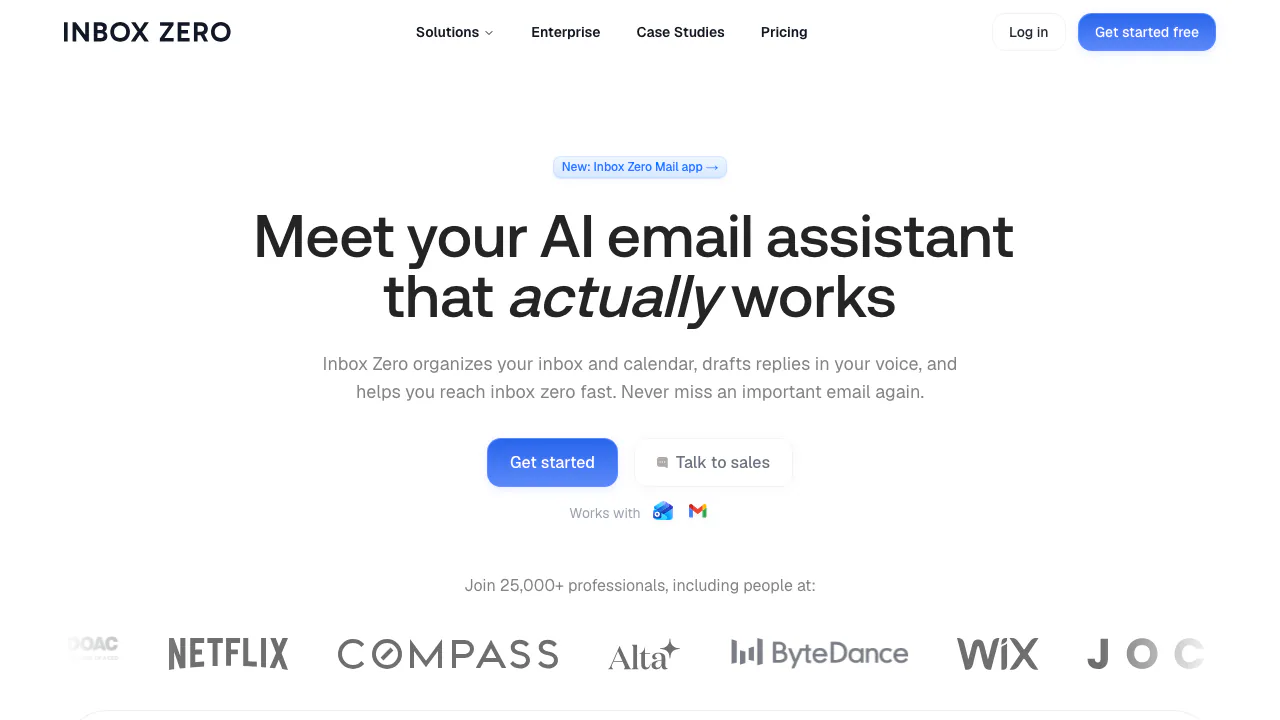
Inbox Zero is an AI email assistant that helps you deal with the mail already arriving in Gmail, Google Workspace or Outlook. Think of it as an extra layer that sorts messages, prepares replies and reduces newsletter clutter. You can keep your familiar email app, or use Inbox Zero's separate mail client.
It is particularly useful when customer questions, meeting requests and automated notifications compete for attention. The practical goal is a manageable inbox with clear next actions; generated text still needs your judgment.
Turn incoming messages into an organized queue
The Assistant uses rules with conditions and actions. Describe what should happen in plain English, then review the rule it creates. For example, a newsletter rule can label and archive incoming subscriptions, while a message needing an answer can receive a draft. Available actions vary with the email provider and connected services.
Rules apply to new arrivals. For existing mail, use the dedicated cleanup tools. This distinction helps you avoid expecting a newly saved rule to instantly reorganize the entire archive.
Prepare replies that sound like you
Auto-drafting puts proposed answers in your Drafts folder without automatically sending them. In Assistant → Settings, describe your preferred length, formality, greetings and signature. A knowledge base can supply stable information for recurring questions.
Draft confidence lets you trade coverage for caution: a stricter setting skips uncertain replies. Follow-up reminders can surface conversations where either side has not answered. Connected Google or Outlook calendars can inform scheduling drafts; select the calendars and timezone whose availability should count.
Clean subscriptions and old mail deliberately
Bulk Unsubscribe groups newsletter senders and shows message volume and reading activity. Review senders, select several and apply the appropriate action. A sender with a usable unsubscribe link can be unsubscribed; otherwise Block archives existing and future messages from that sender. Some unsubscribe actions open the sender's own page.
Bulk Archive handles accumulated mail by sender category. Archiving removes messages from the inbox while keeping them searchable. Deleting moves them to trash. Analytics can help identify high-volume senders and examine response times or rule activity. The official cleanup guide explains the action differences.
Set up and verify your first rule
- Connect a Gmail or Outlook account and review the requested permissions.
- Open Assistant, complete the guided setup and inspect each rule's conditions and actions.
- Start with a narrow labeling or archiving rule. Run Test All against representative messages; this evaluates matches without applying actions.
- After new mail arrives, inspect History. Use Fix when a message went to the wrong place.
- Enable personalized drafts after checking their tone and factual content. Add sending or forwarding actions only after testing the matching behavior.
Each mailbox has separate settings and rules. The getting-started documentation provides the complete path.
Free email app, paid AI and optional integrations
Verified on October 20, 2026: the email app is free, while hosted AI plans offer a seven-day trial requiring a credit card. Cancel during the trial to avoid the subscription charge. AI subscriptions use per-user billing with monthly and annual choices; check the selected period on the current pricing page.
Plus and higher include capabilities such as Slack integration, app integrations, email digests, automatic attachment filing and an unlimited knowledge base. Attachment filing can organize files into selected Google Drive or OneDrive folders. Enterprise requirements have a sales route. Bringing your own model-provider key can create separate provider charges.
Data access and self-hosting boundaries
The hosted service processes mailbox data, and third-party AI providers may receive message content and metadata for requested features. The privacy policy prohibits those providers from training on your data. It also distinguishes full bodies, which are not permanently stored, from retained sender information, summaries and automation metadata. This is not a promise that no data is processed or retained.
Sensitive-data settings can allow, redact or block detected credentials and card numbers. Access can be revoked. Review the privacy policy before connecting work mail.
Self-hosting is documented, but the repository license adds commercial monetization restrictions and requires an enterprise license for organizations with five or more business users.
Frequently asked questions
Does it work with both Gmail and Outlook?
Yes, including Google Workspace. It can work alongside your existing client; review settings separately for each connected mailbox.
Is the AI assistant free forever?
The free mail app and the AI subscription are separate. Hosted AI has a seven-day trial; integration features depend on the plan.
Can it send replies automatically?
Auto-drafts stay unsent. However, enabled rules can include sending actions and run automatically, so check the actual rule rather than assuming every message needs approval.
Do I need to run my own server?
No. You can use the hosted service. Self-hosting is optional and carries deployment work and license conditions.
Official resources
- Product documentation: setup and feature guides.
- Official GitHub repository: source, deployment information and issues.
- Product support: help with accounts and operation.
Related tools
AI Email Assistants →
GleapPaid
Connect customer questions, bug investigations and reviewed fixes.
readywhenFree
Turn promises in emails, chats and call notes into reviewed follow-up.
Craft AgentsFree
Connect AI agents to files, APIs, MCP and browser workflows.
NitroStackFreemium
Build typed MCP tools, inspect their behavior and deploy them with a connected development stack.
Buddy WorksFreemium
Visual CI/CD pipelines, preview environments and deployment tools that AI agents can operate.