

Retriever AI (rtrvr.ai)Freemium
Turn browser instructions into checked tables and completed web tasks.
Cube Forms: AI Form Builder for Agents
Cube Forms is an AI form builder designed for people and their agents to use the same form
What does Cube Forms do, in plain English?
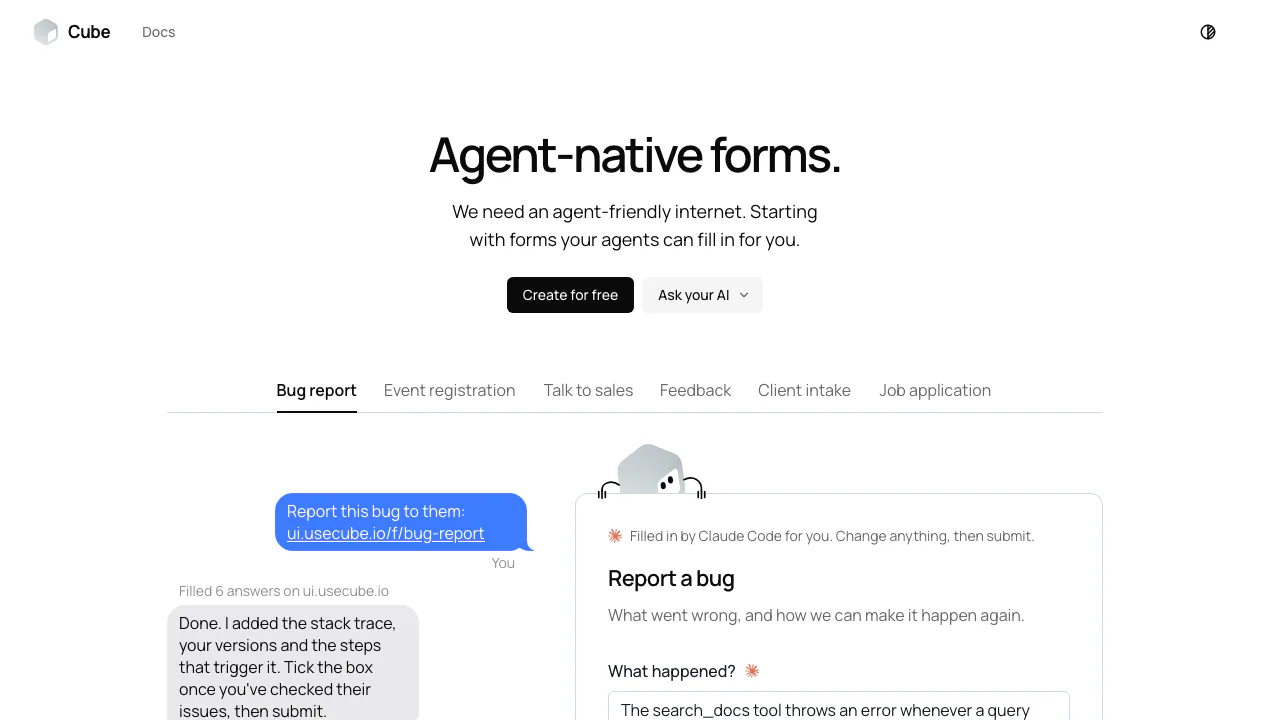
Cube Forms is an AI form builder designed for people and their agents to use the same form. A person opens a normal webpage; an agent reads the questions as Markdown or JSON Schema and sends structured answers through MCP or HTTP. It suits registrations, feedback, bug reports, client intake and applications where an assistant already has some of the information.
The practical difference is the handoff. An agent can prepare answers for a person to check, or submit them immediately when authorized. Cube supplies the form and its interfaces; the AI assistant you connect supplies the reasoning.
Build a form and share one link
Start with the information you need to collect, such as a workshop attendee’s name, email and preferred time. Sign in, open the form builder, arrange the questions and mark required fields. The documented builder supports 21 field types, including choices, dates, files, ratings and repeating work-history entries. Check the labels and required answers before publishing.
An assistant can instead prepare the form specification and return a builder link for you to review and publish. With the authorized owner MCP endpoint, create_form publishes directly and returns the shareable URL. Test that URL and inspect the first answer before distributing it widely.
Let an agent fill it, or review a prefilled draft
For filling, give your agent the form link. It can read the .md version or JSON Schema, check required fields and ask you for missing information. The public endpoint, https://ui.usecube.io/mcp, does not require sign-in; managing your own forms uses /mcp/owner with OAuth authorization.
Choose prefill_link when you want to inspect the answers first. It sends no submission: you open the link, change anything, attach files and handle consent fields before pressing Submit. In contrast, submit_form or an HTTP POST counts immediately and returns a receipt. A 400 response identifies fields to fix; a 429 response means wait for Retry-After.
The official setup guide covers Claude Code, Claude, Cursor and ChatGPT where custom connectors are enabled; client support determines which route is available.
Collect files and send answers into your workflow
File questions accept the documented formats subject to each field’s restrictions. An agent with command access can upload a local file as multipart; other routes include a public HTTPS URL or a small base64 object. A prefilled link carries no attachment, so the person adds it on the page.
Owners can export CSV or forward answers to verified email, a signed webhook or Slack. Configure the destination in Settings and test delivery. Webhooks can reach CRM workflows through services such as Zapier or Make; native CRM connectors are described as forthcoming. A published form can also appear inline on your website or behind a popup button.
Free access, data handling and practical limits
Checked on 15 October 2026: the homepage offers free creation, but the inspected pages do not provide a complete paid-plan or response-quota table. Do not read that as unlimited or permanently free usage. Docs specify up to 10 MB per file and 50 MB per submission; a field can impose a smaller limit.
Prefilled URL fragments do not reach the server, but submitted answers do. Receipt links act as access keys, and forwarded copies remain in connected systems after deletion in Cube. No comprehensive privacy policy, training-use statement or data-residency commitment was verified on the inspected pages. Review those conditions before using sensitive records.
Cube also documents retaining submission metadata for abuse checks; uploaded files are restricted to the owner, while integrations may receive signed download links.
Frequently asked questions
Is Cube Forms free?
The homepage offers “Create for free” as of 15 October 2026. Numeric general allowances and paid-plan terms were not verified, so check the live service for any usage conditions.
Can an AI assistant create and publish a form?
Yes. Without owner authorization, the assistant prepares a builder link for you to check, sign in and publish. With authorized owner MCP access, create_form publishes directly and returns the shareable form URL.
What files can a form accept?
The documented formats are PDF, DOC, DOCX, PNG, JPEG, WebP and GIF. Each form can narrow the accepted types; the documented maximum is 10 MB per file and 50 MB in one submission.
Official guides
Related tools
AI Form Builders →
PancakePaid
Turn your website and buying signals into reviewed prospects and personal outreach.
ChatwayFreemium
Answer website and store enquiries with AI, a shared inbox and human support.
SquadRoomPaid
Give specialist agents a task, then review the work, documents and report.
SalesRepPaid
Qualify leads, share product quotes and hand conversations to your team from one inbox.
guilds.runFree
Run agent teams and inspect their prompts, tools and memory.