

PopcraftFreemium
Create AI videos, images, audio and product ads in one workspace
ngram — AI video generator for product demos and training
Turn briefs, documents and screen recordings into editable videos.
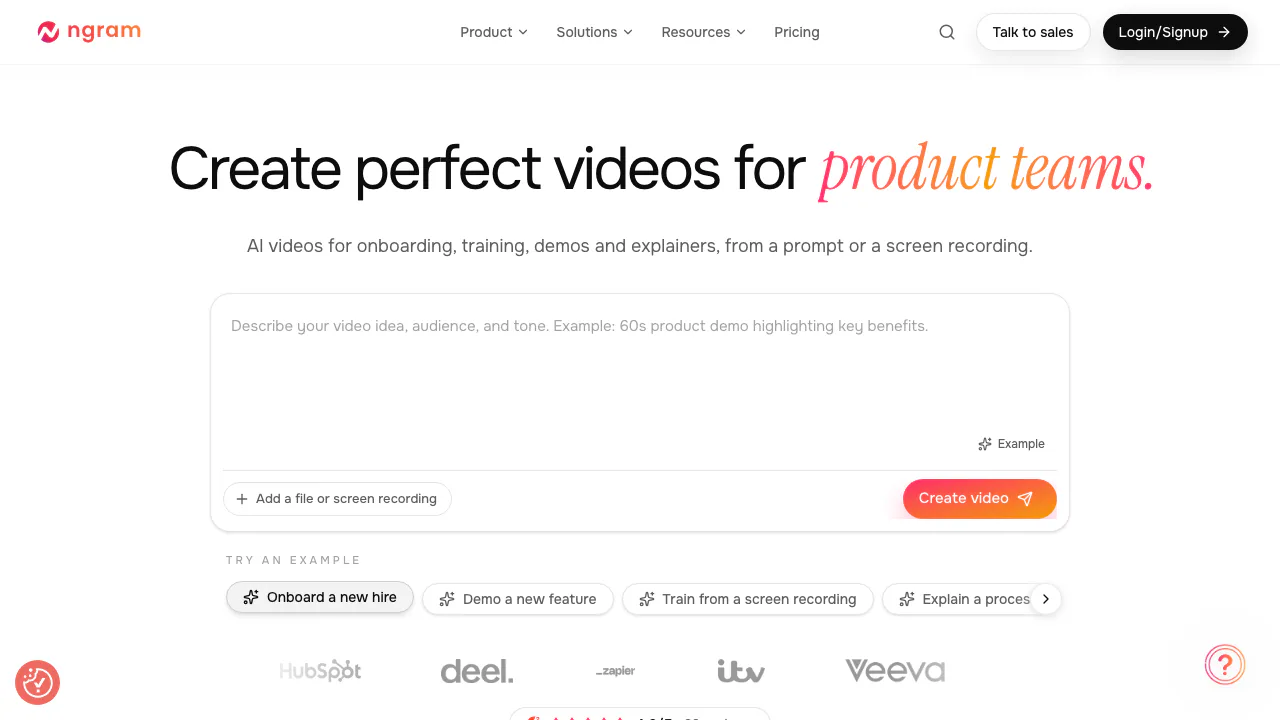
ngram is an AI video generator for turning a product brief, approved documents or a screen recording into a narrated video that you can review and revise. It suits product demonstrations, customer onboarding, internal explainers and training, with a planning step before production.
What does ngram actually do?
Think of ngram as a video-making workspace that starts with the message you need to explain. You describe the audience and outcome, add source material when accuracy or specific visuals matter, and review a proposed script and production plan. The platform then produces the video, rather than leaving you with only a written script.
It is useful for teams that repeatedly explain software, processes or updates without filming a presenter every time. Product and support teams can build walkthroughs; marketing and learning teams can create explainers. Generated facts, visual details and narration still need human review.
The service terms identify its operator as Ngram, a California corporation.
Turn a screen recording into a clear product demo
ngram’s Screencast workflow accepts an existing recording or a browser recording. Its screen-focused controls can shorten pauses, smooth cursor movement, emphasize clicks and add labels or captions. This helps a viewer follow the action instead of watching an unedited capture.
Prepare a recording with the intended steps in order. In the brief, identify the task, the audience and what must remain accurate, such as button names. After production, replay the steps and check that narration matches the interface. For a correction, identify the scene or moment and state both the change and what should stay. Revisions can consume credits.
Give documents and screenshots different jobs
Documents, slides, screenshots and recordings can help ground the result in approved material. Tell ngram how to use them: a document may control facts, a deck may suggest the structure, and screenshots may provide the product visuals. State which source takes priority when they disagree.
Wait for uploads to finish processing and confirm the selected attachments before submitting. A private webpage may require an approved export or screenshots instead of a link. Check the file limits shown in your current upload control; supported options can differ between accounts and versions.
Add an AI presenter and keep the video on brand
A supported avatar workflow combines a pre-built presenter or approved team face with a script, voice and synchronized lip movement. Preview the available voice and check pronunciation in the result. Premium currently includes one custom voice and one custom face/avatar slot; Ultimate offers more under its plan configuration. Custom likenesses and voices require the relevant person’s written permission and an adult subject.
Brand Kit supplies reusable logos, colors, fonts and writing direction. Localization can translate the script, captions and on-screen text and regenerate narration. Check the live voice and model choices for the language you need; no fixed language count or universal presenter availability is promised.
Free and Basic do not include custom identity creation. Ultimate’s published custom voice and avatar slots are unlimited under the current plan and fair-use conditions. A real person used for custom identity must be at least 18.
Make and check your first video
- Sign in, check your credit balance and choose Prompt to video on Home.
- Write a short brief: who will watch, the main point, and the action they should take. Add permitted sources and wait for processing.
- Review length, voice, presenter, format, model and brand settings, together with the estimated credits.
- Select Create video, inspect the proposed script and production details, and request corrections before Approve plan.
- Watch the result. Use chat or Make changes for a specific revision, then replay the affected scenes.
- Download the selected result as MP4 and verify its sound, captions and version. A playable preview may appear before download preparation finishes.
The first-video guide explains the current interface. Landscape, portrait and square formats depend on the selected models. GIF instructions in the export guide apply to eligible older workflows and should not be assumed for every V2 project.
Understand free credits, export quality and commercial use
Checked on 14 October 2026, Free includes 600 one-time credits, without a credit card. At the base rate this can cover up to 60 seconds of premium generated footage; it is not a 60-second limit on the final assembled video. Generated media and AI editing draw on credits, so use the estimate before starting.
Public plans list Basic, Premium and Ultimate with different credit allowances and export quality. The export guide lists Free at 720p with a watermark, Basic at 720p without the Free watermark, Premium up to 1080p and eligible Ultimate exports up to 4K. Check the options in the active project. Official pricing is shown in USD, with monthly and annual billing arrangements.
The published monthly-equivalent allowances are 3,000 credits for Basic, 10,000 for Premium and 50,000 for Ultimate; this is capacity, not a guaranteed number of finished videos.
The terms limit Free outputs to personal, non-commercial use. Paid output rights remain subject to the terms and your rights in uploaded material; a subscription does not license someone else’s images, voice or branding.
Check uploaded-data conditions before choosing a plan
ngram is a cloud service. Its policy describes storing created content and sending sources and derived scripts or prompts to AI subprocessors. The privacy policy says content is not used to train ngram or provider models, while the separately linked terms allow Free Tier content to be used for model and service improvement, with a prospective opt-out. These statements conflict for Free accounts; confirm the applicable rule before uploading confidential material.
The terms exclude Paid Plan content from underlying-model training. The policy describes deletion or anonymization within 30 days after account deletion, with legal or business exceptions.
Connect video creation to an existing workflow
The official HTTP API supports authenticated video jobs and collecting the finished MP4. The MCP setup guide describes creation, status, styles and credit tools for compatible clients. Use the authentication path and account access documented for your client; these integrations do not remove generation costs or review steps.
Quick questions before you start
Is ngram free?
Yes, for evaluation with 600 one-time credits. Free is not an unlimited or monthly-renewing generation allowance, and the documented Free export carries a watermark.
Can I use ngram videos commercially?
The terms restrict Free outputs to personal, non-commercial use. Upgrade for commercial work and check that you own or have permission to use every source asset.
Are uploaded files used to train AI?
The current policy says no training, but the terms separately allow Free Tier training with a prospective opt-out. Confirm that conflict with ngram; Paid Plan terms state that customer content is not used to train underlying models.
Official help and community
- Documentation: current workflows and account guidance.
- Help center: troubleshooting and feature instructions.
- Community forum: user questions, examples and product discussions.
- Contact form: support, billing and account-specific questions.
Related tools
AI Image & Video Generators →
Spira AIFreemium
Create branded content, review social posts, schedule publishing and learn from results.PipioFreemium
Create presenter videos with AI avatars, voices, and dubbing
TavusFreemium
Real-time conversational AI humans, custom replicas and async avatar video through one API
Bulin 47 AIPaid
Turn an authorized adult portrait into a 23-second freestyle remix with the original sound.
FavorePaid
Create an image, refine it, then turn it into motion in one workspace.