

One RoofFree
Bring coding-agent sessions, approvals and bounded loops into one Mac app.
Navier AI: engineering simulation with Prism
An engineering agent for CAD, simulation, code and reports
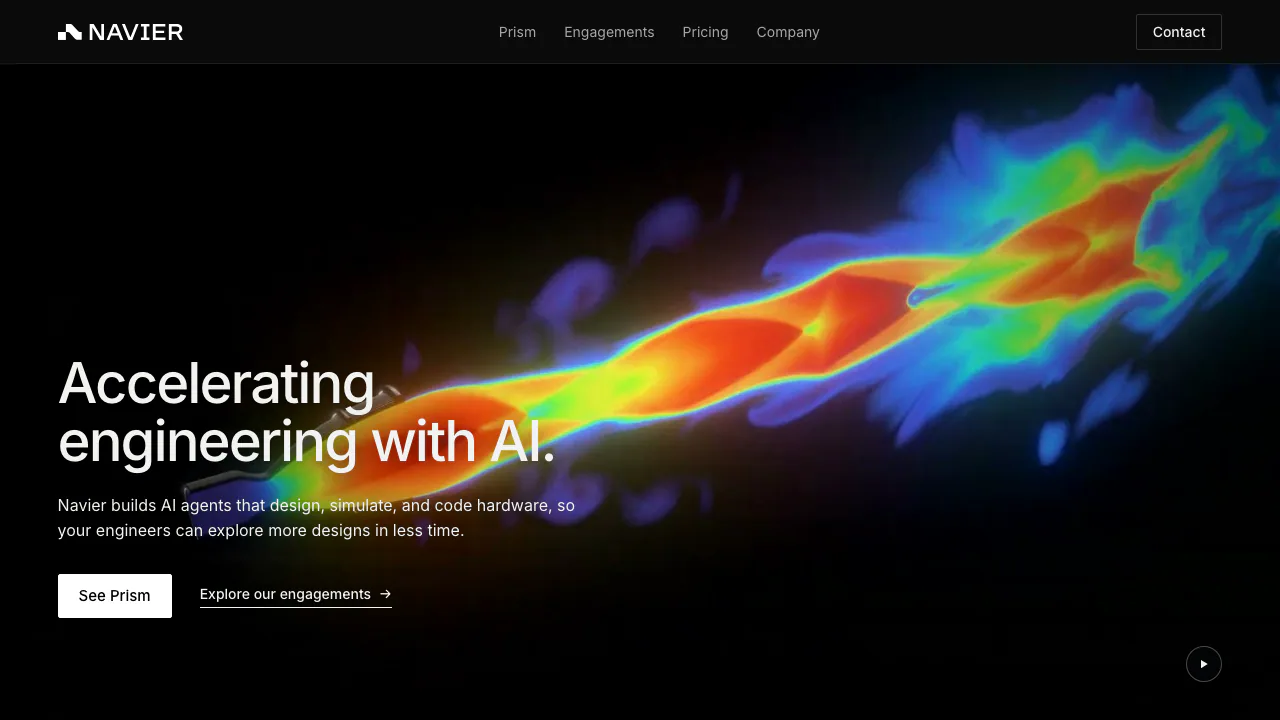
Navier AI develops engineering simulation software and AI agents for hardware teams. Its current flagship, Prism, combines design, numerical analysis, engineering code and reporting in a desktop workstation. It is aimed at engineers who want to explore a design while keeping the underlying project files available for review.
What does Navier AI actually do?
Think of Prism as a technical assistant working beside your CAD files and simulation tools. You describe the part, its materials, loads and constraints; the agent can prepare geometry or a calculation, run tools and organize the results. You can inspect the files and decisions along the way. For example, a bracket analysis asks how a specified load affects stress and displacement rather than simply producing an attractive 3D image.
Navier also has a hosted browser CFD workspace. The Prism documentation distinguishes that cloud application from the installed, broader engineering workstation. Older descriptions focused only on browser-based fluid simulation do not capture Prism's present scope.
Move from CAD to CFD, FEA and a reviewable report
Prism can turn a part description into CAD that can be edited and exported. Its viewers open STEP/STP and STL/OBJ geometry, while native case files and results have their own views. Viewer support should not be read as a guarantee that every imported format has the same editing or export capabilities.
For structural analysis, Ferro is bundled with the app. Third-party choices include OpenFOAM and SU2 for fluid workflows and code_aster or CalculiX for structural work; the catalog also covers thermal, multibody and electromagnetic tools. Results can be explored through fields, slices, plots and comparisons. The agent can write analysis scripts and firmware, then assemble PDF or PowerPoint reports using team templates. These capabilities reduce tool handoffs, while solver assumptions and conclusions remain engineering review tasks.
A practical first analysis in Prism
- Install the build for your computer and sign in. Attach the project folder as a workspace so the agent can read the relevant files.
- Open the geometry and ask for a description before requesting changes. Supply materials, loads, constraints and the quantity you need to evaluate.
- Request a plan. The official quick start uses a bracket with fixed mounting holes, a downward load and an aluminium material as an example of a defined structural task.
- Review proposed actions and the generated case, then run the analysis. Third-party solvers need a container engine such as Docker; Ferro needs no separate solver installation.
- Inspect the fields, solver logs and changed files. In a Git repository, use the diff to understand edits before accepting a result. Check units and convergence, then change one design condition at a time for a useful comparison.
Follow the official quick start for the actual interface. Ferro uses SI inputs without automatic conversion, so geometry expressed in millimetres must not be treated as metres.
Installation and connections to existing tools
Supported builds are macOS on Apple Silicon and Windows or Linux on x86-64. Account access is required. Plugins can connect tools such as Onshape, GitHub and Slack; Altium Designer is listed as beta. The available catalog depends on your operating system and Prism version. Public documentation does not establish a general API entitlement for every customer.
Pricing and when to ask for an engagement
Checked on November 5, 2026, the public price is USD 500 per seat per month for Prism. This is the published dollar price, not a verified tax-inclusive checkout price for every market. Documentation also exposes organization-level token, call and cost statistics; confirm included allowances and any additional usage charges before purchasing. A permanent free plan or unlimited usage was not verified.
Teams can separately commission a simulation engagement or have Navier engineers work alongside them to integrate Prism. Those services are scoped and quoted, and an engagement can deliver a report plus case files for inspection or rerunning.
Local files and the AI data boundary
Prism stores project files and local solve results on your disk. However, the agent uses Navier's backend: content it reads is sent to the model as conversation context. Local storage therefore does not make the AI fully offline. Sign-in and agent work require connectivity. Review the official FAQ and service terms before using confidential designs. The terms retain client rights in designs and results while reserving Navier's own technology; they should not be summarized as an unrestricted privacy or no-training guarantee.
Frequently asked questions
Is Navier AI free?
The published Prism plan is paid. Ask Navier about evaluation access and current allowances rather than assuming a free download includes free ongoing usage.
Can it handle both fluid and structural analysis?
Yes. The supported solver families cover CFD and structural FEA, among other domains. The correct solver and a valid case setup still depend on the engineering problem.
Do I need Docker for everything?
No. A container engine is needed for third-party solver runtimes. The built-in Ferro solver and viewers do not require it.
Does keeping files local prevent all data transmission?
No. The agent sends the content it reads to the model through Navier's backend. Confirm your organization's data requirements before attaching a sensitive workspace.
Official resources
- Contact the engineering team: access, service scope and commercial questions.
- Service status: availability and incident information.
- Navier AI on X: the announcement account linked by the official website.
Related tools
AI Engineering & Simulation Tools →
QualityLayerPaid
An approval and review workflow for the coding agents you already use.
DessnFreemium
Design and review changes against the frontend your product already uses.
WavefunctionFree
Parallel coding tasks with your own cloud or local models.
NanaFree
Run coding agents side by side with worktrees and persistent terminals.
FlockbayFreemium
Build and playtest editable Godot games with AI