

CardboardFreemium
Turn footage or an idea into an editable cut, then refine it through chat or the timeline.
Shot.video for multi-camera recording and editable AI cuts
Record your screen and phone cameras together, then refine an AI first cut.
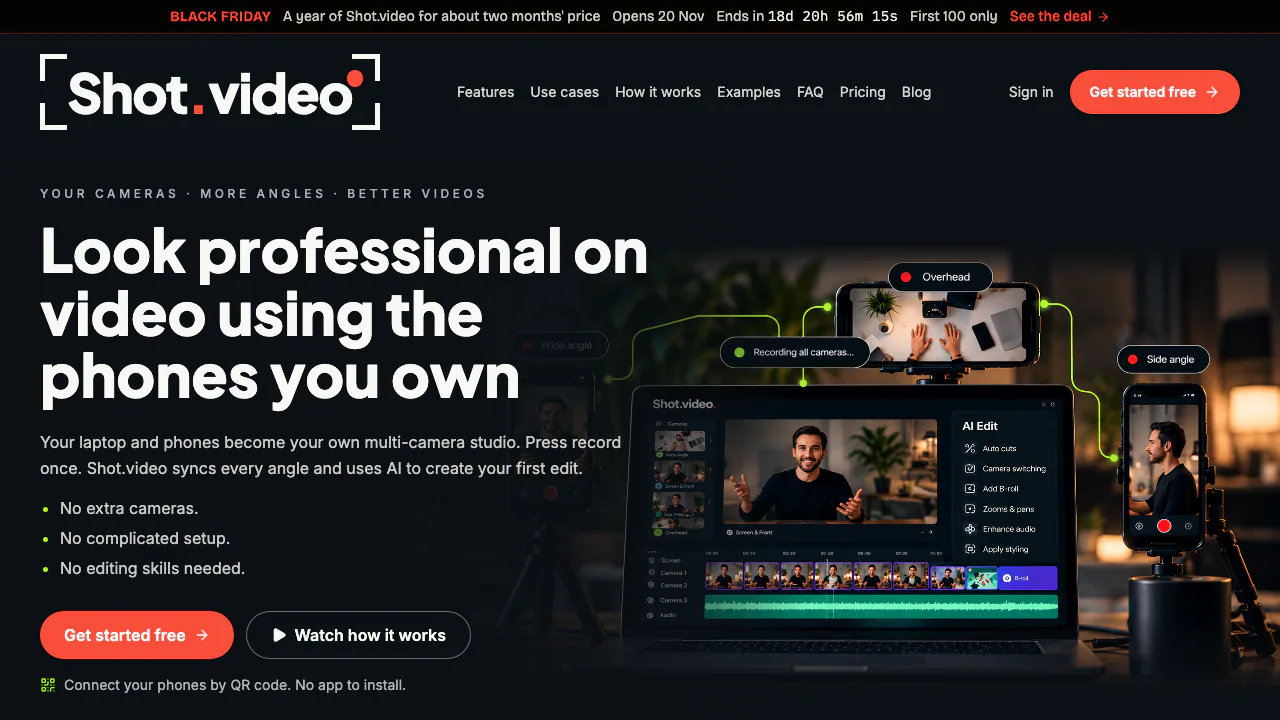
What does Shot.video actually do?
Shot.video is a browser-based recording and AI editing tool for people who explain things on camera. It combines your laptop camera, screen, microphone and one or more phone cameras in a synchronized session. AI then assembles a first cut that you can change.
Think of a software demonstration with three useful views: you explaining the idea, the screen showing each step, and a phone capturing a physical device on the desk. Shot.video brings those views into one edited video. You still provide the presentation and footage; optional generated B-roll adds cutaway images or short clips.
Record a useful second angle with your phone
- Start a recording session on your laptop.
- Scan the session QR code with a compatible phone. The phone joins through its browser without an app installation.
- Secure the phone, check framing and repeat for any additional phones. An overhead view shows hands; a side view adds another presenter angle.
- Start recording once to capture the connected cameras, screen and audio together.
- Review the AI edit, check captions and sound, and choose a horizontal 16:9 or vertical 9:16 export.
The official second-camera guide recommends a short device and browser test, particularly on Android. Clean the lens, use a stable mount and check the vertical crop before relying on a full take. Recordings stop at 10 minutes, so plan longer sessions as separate parts.
Public pages reviewed did not establish retention periods, training use or commercial licensing terms. Confirm the relevant conditions before uploading confidential material or relying on generated assets commercially.
Keep control of the AI first cut
AI selects camera angles, including changes when you look at a different camera. You can replace its choices. Screen zooms and pans focus attention on the area where activity changes, helping viewers follow a software demonstration.
B-roll suggestions remain subject to your approval. Move, trim or crop each accepted cutaway so it supports the explanation. Screen shots can appear clean, inside a browser frame or in a 3D showcase. Laptop microphone audio stays aligned under the different angles; a phone microphone can take over when it is closer to the speaker.
Before exporting, watch the whole edit. Check whether a camera switch hides a useful detail, a zoom removes context, captions misread a name, or audio changes sound distracting. These are review decisions, not reasons to regenerate an entire cut.
Choose a setup for demos, lessons or interviews
For product demos, combine the presenter and screen with a close-up of the object being discussed. For lessons, an overhead phone view can show writing or hands while the laptop captures the explanation. Reviews and unboxings benefit from both a wide view and a detail view.
The homepage also lists team updates and podcasts. A second angle should reveal something useful rather than merely add movement. The 10-minute take limit matters when planning a long lesson or interview; this workflow suits short, planned segments particularly well.
Understand credits, prices and recording limits
Checked 13 November 2026: the free plan includes 2 Video Credits and 5 B-roll Credits once, with no card required. Manual adjustments, downloads and inserting your own B-roll remain free.
Video Credits pay for AI editing. Each started five minutes of synchronized footage uses one credit, counted once across cameras: up to five minutes uses one; more than five and up to ten uses two. A complete alternative AI cut costs the same again; one correction per project is included.
B-roll has a separate balance. A generated still costs one B-roll Credit, while a 3–8-second generated clip costs 25. Variations also use credits, so the five free B-roll Credits do not cover a generated video clip.
Monthly billed plans are Creator at USD 19 with 20 Video/25 B-roll Credits, Pro at USD 39 with 60/100, and Studio at USD 79 with 150/250. Tax appears at checkout. Studio increases the allowance; it is not a team workspace. One-off packs are also available, starting at USD 9 for five Video Credits. Subscription rollover is capped at three times the monthly allowance; cancellation ends access to subscription credits after the paid period. See current plans and credit rules before paying.
Annual-plan credits still arrive monthly. Deleting a video does not restore spent credits; failed AI work releases its reserved credits.
Common questions
Is Shot.video free to use?
Yes, it has a free plan with a one-time AI allowance. Further AI edits or generated B-roll require available credits; manual editing and downloads stay free.
Do phones need an app?
No. A compatible phone scans the session QR code and records through its browser. Compatibility varies, so make a short camera and microphone test first.
Can I change the AI edit?
Yes. Camera choices remain editable, and approved B-roll can be moved, trimmed or cropped. Manual changes do not spend extra AI credits.
Official recording resources
- Official video walkthrough: see the recording-to-edit workflow linked from the homepage.
- Shot.video recording guides: explore demo, lesson and camera-position examples.
Related tools
AI Video Editing & Workflow Tools →
ClipsPalPaid
Turn multiple takes into an editable video with captions, then cut vertical shorts.
EditsFreemium
Edit on your phone or Mac, add captions and share a clean 4K export.
OpusClipFreemium
Clip and reframe long recordings for Shorts, Reels and TikTok.
Riverside AgentsFreemium
A native AI production team for preparing, editing, clipping and publishing recorded conversations.
OpenScreenFree
Record, caption, and polish desktop demos with local tools and optional AI editing.