

CardboardFreemium
Turn footage or an idea into an editable cut, then refine it through chat or the timeline.
ClipsPal AI Video Editor for Talking-Head Footage
Turn multiple takes into an editable video with captions, then cut vertical shorts.
What does ClipsPal do?
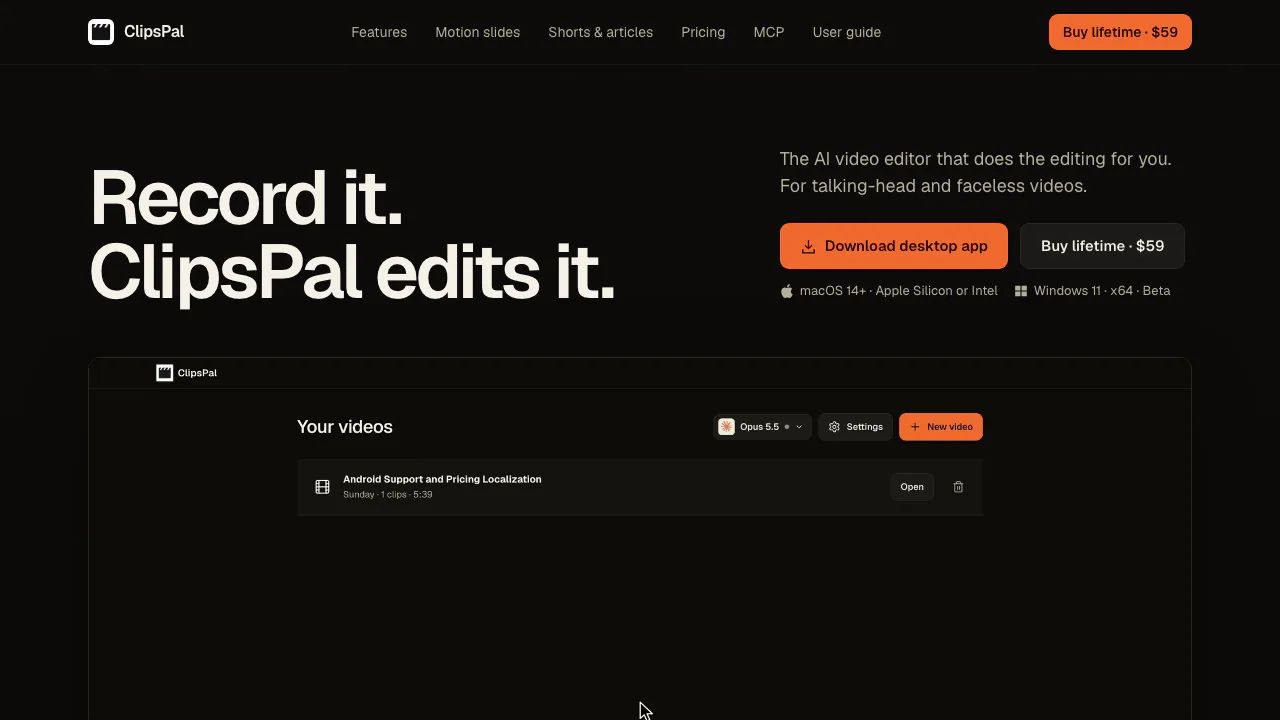
ClipsPal is a desktop AI video editor for footage you have already recorded. Say you filmed a product walkthrough and repeated the same explanation three times. ClipsPal transcribes the recording, trims failed takes and pauses, and assembles a first cut you can play back and revise. That makes it useful for YouTube presenters, instructors, and creators who record voice-over without appearing on camera.
Make a first cut you can review
- Start a new video and import camera clips, audio, or a folder of takes. On Mac, you can also capture the screen with an optional camera inset. Choose the spoken language, video format, and AI for that project.
- Let the automatic edit run, then play the original and edited versions at the proposed cuts. Use the Removed view to restore a phrase or a pause if it gives the viewer time to follow an instruction.
- Split or trim clips in the timeline, or ask Director to tighten a particular passage. To illustrate part of an explanation, select its words in the transcript and add a motion slide. Review the change in context before moving on.
Correct captions and deliver a usable file
Check names, numbers, and technical terms in the transcript. Caption text can appear by sentence or word by word. Correcting its spelling leaves the recorded voice as it was. Export 1080p or 1440p MP4 with optional burned-in captions. To finish in Premiere Pro or DaVinci Resolve, export an editable timeline and keep the source media available for the other editor. Review the rights and accuracy of any generated assets before publishing.
Rework a full recording for a vertical audience
After the main edit, open Shorts and describe a focus, such as a complete answer to one question from a demo. Each generated clip has its own editable tab. Use Frame to check the 9:16 crop and move captions away from platform controls. The finished recording can also supply a draft article or YouTube chapters. Check chapter timing again after changing the edit.
Desktop compatibility and AI processing
Mac support starts at macOS 14 on Apple Silicon or Intel. The Windows 11 x64 build is an unsigned beta. It imports, edits, and exports media. Native screen and camera capture and camera background removal are Mac features. Desktop downloads
Footage and transcription stay on your computer. A connected AI provider can receive the transcript, instructions, and reference media needed for a visual task. Choose the downloadable local model to keep AI processing on-device. License activation still requires a connection. Privacy policy
Frequently asked questions
Is ClipsPal free to edit with?
The installer and local model are free to download. Desktop editing needs a one-time license, including updates and use on up to two computers. On November 11, 2026, the official price page showed a tiered USD price. Check the purchase total at checkout. Current pricing
Can I export automatic captions as an SRT file?
Yes. In Export, choose SRT only, or include an SRT alongside the MP4. The SRT contains text and timing. Enable burned-in captions if you want the video file itself to preserve the caption styling.
Can I make Shorts from a longer video?
Yes. Ask for one to five vertical cuts from the finished edit. You can revise the boundaries and framing of each clip independently.
Official resources
- Look up cut review, caption styles, and export settings. Editing guide
- Get help with device changes, lost keys, or a failed step. License and app support
- External AI control is described for the next app update. The current public download lacks MCP according to the integration guide. MCP documentation
Related tools
AI Video Editing & Workflow Tools →
Shot.videoFreemium
Record your screen and phone cameras together, then refine an AI first cut.
EditsFreemium
Edit on your phone or Mac, add captions and share a clean 4K export.
OpusClipFreemium
Clip and reframe long recordings for Shorts, Reels and TikTok.
VidecoPaid
Turn recorded demos and webinars into campaign content.
Riverside AgentsFreemium
A native AI production team for preparing, editing, clipping and publishing recorded conversations.