

ArchOne AIFreemium
All-in-one AI spatial design visualization platform for architecture, interiors, and landscapes
FloorGen: AI Floor Plan Generator with Editable 3D Plans
Generate and refine measured floor plans, furnish rooms and explore the same design in 3D.
What does FloorGen do?
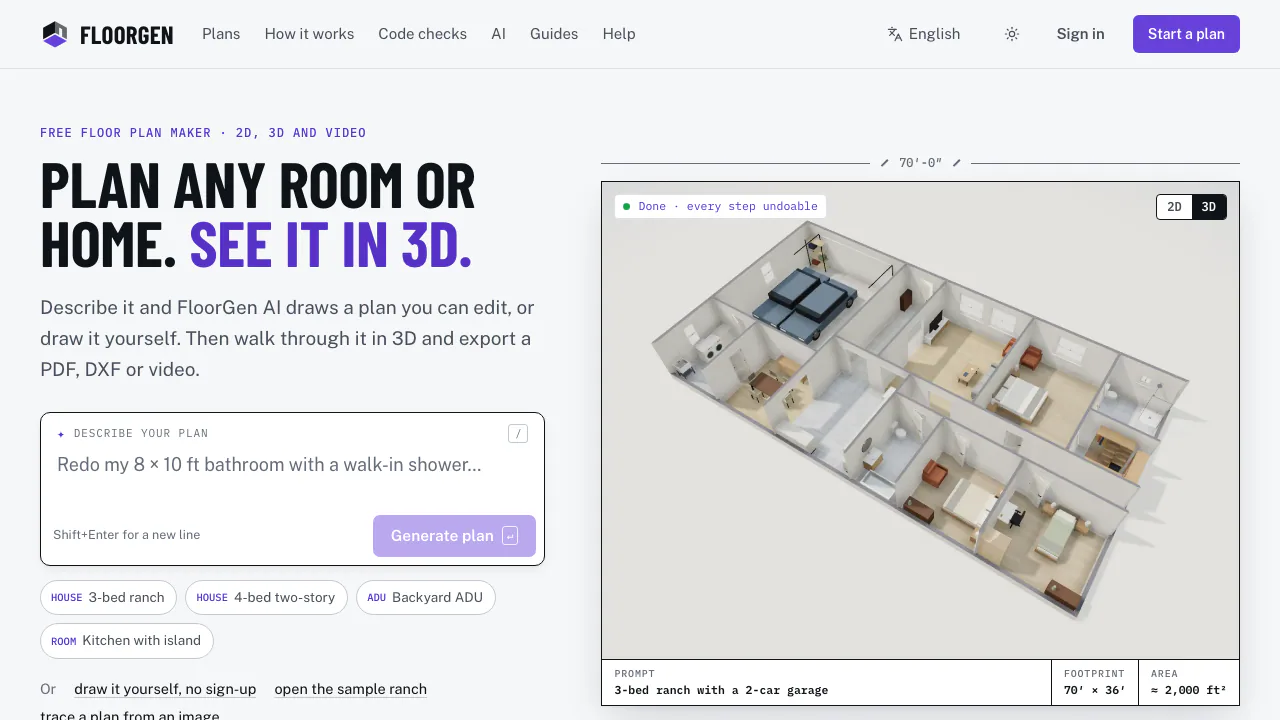
FloorGen is an AI floor plan generator and browser-based space planner. In plain terms, it helps you draw the rooms of a home, move walls and furniture, and see how the layout feels in 3D before you rearrange or renovate. You can start with a description, a blank drawing, a template or an existing plan image.
It suits homeowners testing layouts, renters checking furniture fit and designers discussing early concepts with clients. The result contains editable walls, doors and rooms. Areas and 3D views follow the same drawing. It runs on desktop, tablet and phone, with metric or imperial units; a larger screen is more practical for detailed drafting.
Generate a plan, then refine the actual drawing
Sign in with a free account, open a project and use the AI button or Ctrl/Command + I. Describe the footprint, room list, dimensions and constraints. Ask for a specific change, such as widening the kitchen or moving a door, then inspect the highlighted edits. Compare shows the previous and new layout, and Undo lets you reverse a reply.
Check wall lengths, door swings and circulation before keeping the result. A message can include up to four PNG, JPEG, WebP or HEIC images, so a sketch can be a starting point, but inferred dimensions still need correction.
For an existing assistant workflow, the official MCP documentation explains how Claude, ChatGPT, Cursor and compatible clients can work on synced projects. Scope access to reading, editing or full control and selected projects. Your external AI service has its own subscription and data terms.
Turn a photo or PDF into a measured layout
Use a clear drawing with at least one known dimension. Open More tools → Trace image, or press I, and choose a PNG, JPG, WebP, GIF or PDF page. Mark the two ends of the known length, enter the real measurement and apply the scale. Straighten a tilted scan and lock the background before tracing.
Draw walls yourself or run Detect walls. Remove incorrect dashed suggestions, add the retained walls and complete missing geometry and openings. Verify dimensions and room boundaries before furnishing. Each design on each floor holds one traced image. Images can be up to 15 MB and 20,000 pixels per side; PDFs can be up to 50 MB. Smart import adds a separate AI reading workflow with different processing and credit conditions.
Check the space in 3D and export your work
Place furniture and finishes, then inspect the plan from an overhead, dollhouse or eye-level view. This helps compare room relationships and furniture positions. FloorGen does not offer photorealistic rendering.
Export options include PDF print sets, PNG, SVG, DXF R12, glTF and MP4/WebM walkthroughs. There is no DWG or IFC export. Room areas, schedules and editable unit rates support preliminary material and budget discussions; they do not provide framing or MEP takeoffs. Code checks can highlight issues, but the output is a planning aid rather than permit approval or a construction document.
Free access, accounts and usage limits
Checked October 13, 2026: official terms describe the service as currently free. Drawing, furnishing, 3D and checks work without an account by default. Exports, sync, sharing, built-in AI and MCP require a free account.
The account limits guide lists default AI allowances of 30 messages per hour and 200 per day, up to 1,000 projects, 250 MB total storage and 15 MB per compressed project. My plan and the AI panel show the limits that apply to your account.
Watermarks are currently off by default, but free exports may carry a badge when enabled. Smart import credits are also off by default; an enabled account sees its Read plan credit cost in the interface. No verified public paid price is listed here, and current free access should not be read as unlimited AI or a permanent pricing promise.
Project privacy and practical boundaries
The privacy policy says guest projects are saved in the browser and copied to the server without traced images. Staff can view those copies; they are not backups that users can restore. Sign in, sync and keep your own backup before clearing site data.
Signed-in projects, including traced backgrounds, sync to the database. Basic tracing, wall detection and DXF processing run in the browser, while Smart import AI sends a reduced selected page to a model provider. FloorGen says it does not train AI models on projects; connected assistant providers apply their own policies. You retain your content rights and must have permission to upload drawings. The terms also allow drawings made with the built-in library in your own plans and exports.
Frequently asked questions
Is FloorGen free, and is an account required?
It is currently free. You can draw without signing in, but exports, sync and AI normally require a free account. Usage and storage limits still apply.
Can I use an existing floor plan image?
Yes. Import an image or PDF page, calibrate its scale and trace or review detected walls. Expect to correct unclear lines and missing openings.
Can I edit the AI plan and view it in 3D?
Yes. The AI edits ordinary project objects that you can change manually and undo. The same plan has a 3D view, but every measurement still needs review.
Official guides and support
- FloorGen help centre: detailed drawing, export and account guides.
- Official contact form: product support and privacy requests.
Related tools
AI 3D & Spatial Design Tools →
zCADFreemium
Turn an engineering brief into editable solid CAD, then refine it in your browser.
BrickForgerAIPaid
Turn a text idea into a brick model, parts list and PDF building guide.
Tripo AIFreemium
Create, texture, rig, and export 3D models from text or images.
MeshyFreemium
Generate editable 3D assets from text or images in minutes.
NuvioPaid
Nuvio AI accounting software for small businesses