

Revix AIFreemium
Repository-aware AI code review for your team’s standards
PulseDev: Visual Feedback for Your AI Coding Assistant
Point at a website element, describe the fix and review the source diff.
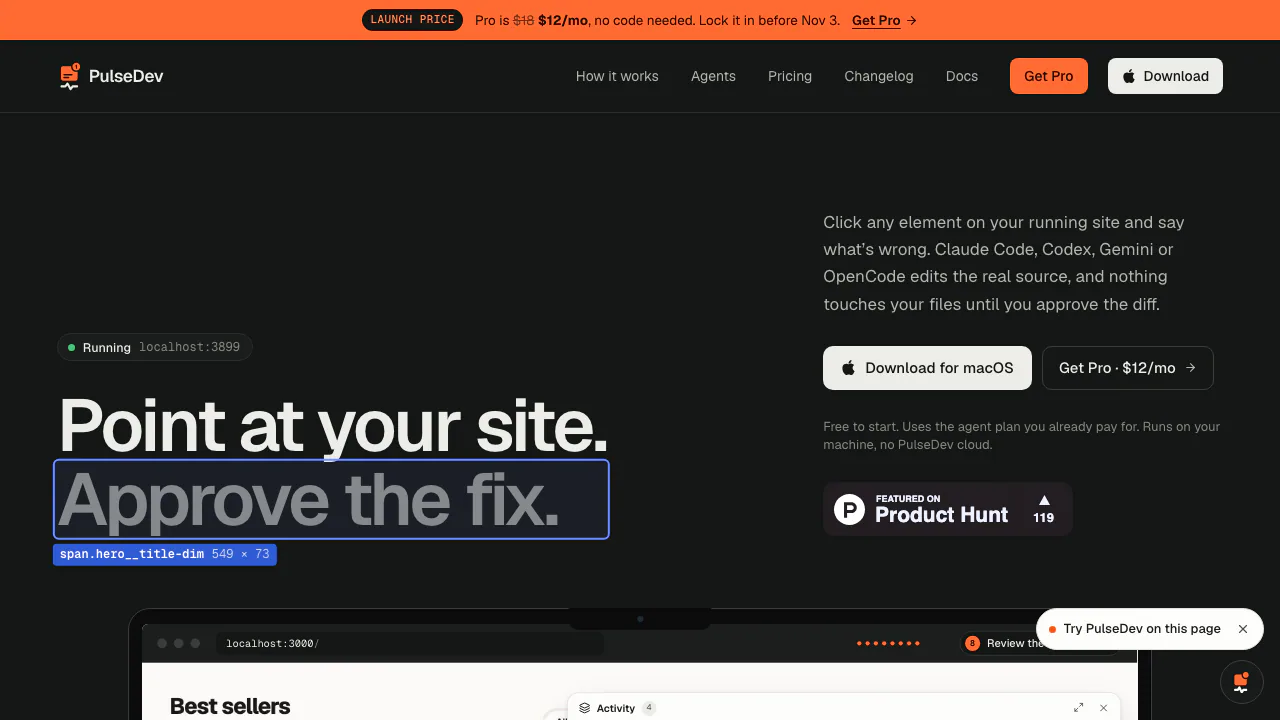
What does PulseDev actually do?
PulseDev gives an AI coding assistant a visual starting point on a website you run locally. Click a button, heading or card, describe the result you want, and send the task to your existing coding agent. Then check the page and source diff before accepting the change.
It connects “this part looks wrong” with the files that implement that interface. It suits frontend developers and designers with access to the project source and a working development environment.
Give the agent the exact element and the intended result
Inspect displays element selectors and dimensions; Shift-click adds multiple elements. Feedback carries page information, markup and styles. The documented context also includes an element screenshot, recent console errors and failed requests.
Make the instruction testable: “Use the same filled button style as the other product cards” is clearer than “improve this.” Context helps the agent locate the work, but does not guarantee a correct fix. Compare the visible result with the affected source.
From a local project to a reviewed fix
- Install the macOS desktop app. Current builds support macOS 13 or later on Apple Silicon and Intel. Windows is listed as coming soon.
- Add the project folder and prepare an installed, authenticated coding-agent CLI and a running local website.
- Use Set up project to add the Vite plugin or project-token widget script. For manual setup, follow the embedding instructions using the actual port and token shown by the app.
- Reload the site, turn on Inspect, select an element, describe the intended change and choose the agent.
- Follow its work, inspect the live result and read the diff. Approve, reject or reply to refine the request.
Keep the widget restricted to development. If it is missing, check the local server, browser console and widget.js address. Keep the project in version control.
Keep several fixes visible
The activity view tracks queued, running, review and completed tasks, per page or across the site. Live logs show file reads, edits and commands, making a change easier to assess.
Each project has its own local server, port and agent. Connect editor (MCP) separately configures annotation access for Claude Code, Cursor and VS Code. That editor connection is distinct from choosing the CLI that performs a fix.
Free, Pro and the cost of your agent
Checked on 29 October 2026, Free includes one project, one chosen agent, unlimited PulseDev agent runs, the widget, board and diff review. Pro adds unlimited projects, all supported agents and concurrent local servers, with monthly or yearly subscriptions and a five-day trial.
The pricing section shows a time-limited USD launch offer. Check current checkout prices and taxes. Model usage still depends on your own agent plan; unlimited PulseDev runs do not provide unlimited AI compute.
Founder Lifetime is a one-time licence. The terms limit the personal licence to three machines and include updates for the current major version. Future major versions may be sold separately.
Local storage and external AI processing
The privacy policy says project tokens, annotations, screenshots and settings are stored in ~/PulseDev. Uninstalling the app does not delete that folder.
Your coding agent can send prompts, captured context and file contents to its own provider. Local storage therefore does not establish offline AI processing. Check that provider’s policy before using confidential code. The server accepts same-machine connections by default; wider network access is optional and still requires a project token.
Frequently asked questions
Is PulseDev free?
Yes, within the one-project and one-agent Free limits. Your agent provider’s charges and quotas remain separate.
Which coding agents can I connect?
Claude Code, Codex, Gemini CLI and OpenCode are documented. The chosen CLI must be installed and signed in.
Does it change the real source code?
Yes. The workflow targets project files and presents a source diff for review. Check both the page behavior and the code before approving.
Official resources
- Setup documentation: project setup, agent detection and editor connections.
- Changelog: release changes and current setup updates.
Related tools
AI Coding & Developer Tools →
AI BridgeFreemium
Organize real coding CLIs, approvals and resumable workspaces in one Mac app.
VibeiDEPaid
Queue Claude Code, Codex and OpenCode tasks, then review every result.
ManyAgentsPaid
Run Claude Code and optional Codex agents with isolated worktrees, review and live previews.
PaddockFree
Linux computers and controlled sandboxes for coding agents on your own VPS.
tabshFree
Keep local shells, coding agents and project status together in your browser